Weapon mode
Choose a weapon category and selection, then adjust the available vertical and horizontal values.
Weapon profiles, movement & utility
Battlefield 6 · Cronus Zen
Weapon recoil profiles, separate ADS and hip-fire tuning, and movement shortcuts for your controller. Keep Primary, Secondary and Ground Loot setups within reach.

EXPLORE PARADIGM
Choose a feature to see how it fits into your setup.
Configure these features to match your game and controller. Full setup and activation instructions are included in your customer guide after access is activated.
PROFILES
Keep three script profiles and assign profile-swap and Ground Loot controls. Automatic switching follows the configured input; it does not identify a gun on your screen.
RECOIL
Use Basic for one strength, Advanced for an opening kick, or Weapon for a selected recoil profile. Each profile also has Off when you want no correction.
MOVEMENT
Slide Cancel and Dive Cancel respond to different crouch presses while sprinting. Auto Sprint uses the supported PS5-output path and is not a universal platform feature.
FIRING
Use Auto Steady Aim while ADS, Auto Ping on firing, or Crouch Shot through ADS plus the configured Grenade action. Configure the layout before enabling them.
UTILITY
Auto Plate starts from the Plate + Ping combination and stops on Aim or Fire. Fast Melee repeats the configured action while held outside aiming and firing.
Make it yours
A closer look at the controls included in Paradigm.
Choose a weapon category and selection, then adjust the available vertical and horizontal values.
Start with one strength or tune the opening kick separately from the rest of the burst.
Separate radius and speed for aiming and aiming while firing.
Separate radius and speed for hip input and hip firing.
Calibrate, test and reset drift values for your controller.
Configure Primary, Secondary and Ground Loot with assignable switching controls.
Send Ping on ADS + Fire and when the supported Fast Melee action starts.
Run the plate sequence from Plate + Ping; Aim or Fire cancels it.
Use forward-stick activation on the supported PS5-output setup.
Send the configured steady-scope input while aiming.
Crouch and fire through the ADS + Grenade shortcut.
Use different crouch-press lengths while sprinting to request the selected sequence.
Choose Off or 1–12 RPS for the generic DMR selection.
Repeat Melee while held when not aiming or firing.
Match buttons, flipped controls, inverted aiming, both stick deadzones and trigger response; choose Off, Low, Medium or High smoothing.
Pause weapon features with a dedicated shortcut, then return to normal play when you exit.
Keep feedback enabled in the game and console/system while stopping the physical rumble.
Choose the script update interval, with Automatic available as a starting point.
Check before you start
Start with a supported connection, then match the settings in your customer guide.
| You need | What to check |
|---|---|
| Cronus Zen | A working Zen setup for your platform and input device. |
| Platform | Supported platforms: PS5, Xbox Series X|S and PC. Some movement and feedback features require PS5 output and the documented vibration/adaptive-trigger setup. Check the requirements for the features you plan to use. |
| Controller or mouse & keyboard | Follow the input-specific setup instructions. Fine tuning depends on your configuration. |
| Discord account | Link Discord to use the script and access customer support and documentation. |
From access to first test
Configure the vibration mix first, then your button layout, profile controls and recoil mode.
Select an available trial, monthly subscription or one-time option.
Sign in or link Discord after paid checkout so your access can be recognized.
Find the script in Zen Studio Live, program it to a slot and complete activation if prompted.
Configure the vibration mix first, then your button layout, profile controls and recoil mode.
Before you choose
Clear expectations make setup easier.
No. Select your weapon manually. Automatic profile switching follows your configured swap input.
No. This build gates Auto Sprint to the PS5-output path. Follow the platform setup in your customer guide.
Three active modes—Basic, Advanced and Weapon—plus Off. Paradigm does not have Sentience’s Expert mode.
Your setup guide is included after your access is activated. Product pages explain the features; customer instructions are available in your account.
The current options are shown in the purchase card above. Monthly access renews until canceled; the one-time option has no renewal. Trial eligibility requires Discord sign-in.
Paradigm combines the controls described above with setup documentation and Discord support while you have access. Choose settings that match your controller and the game.
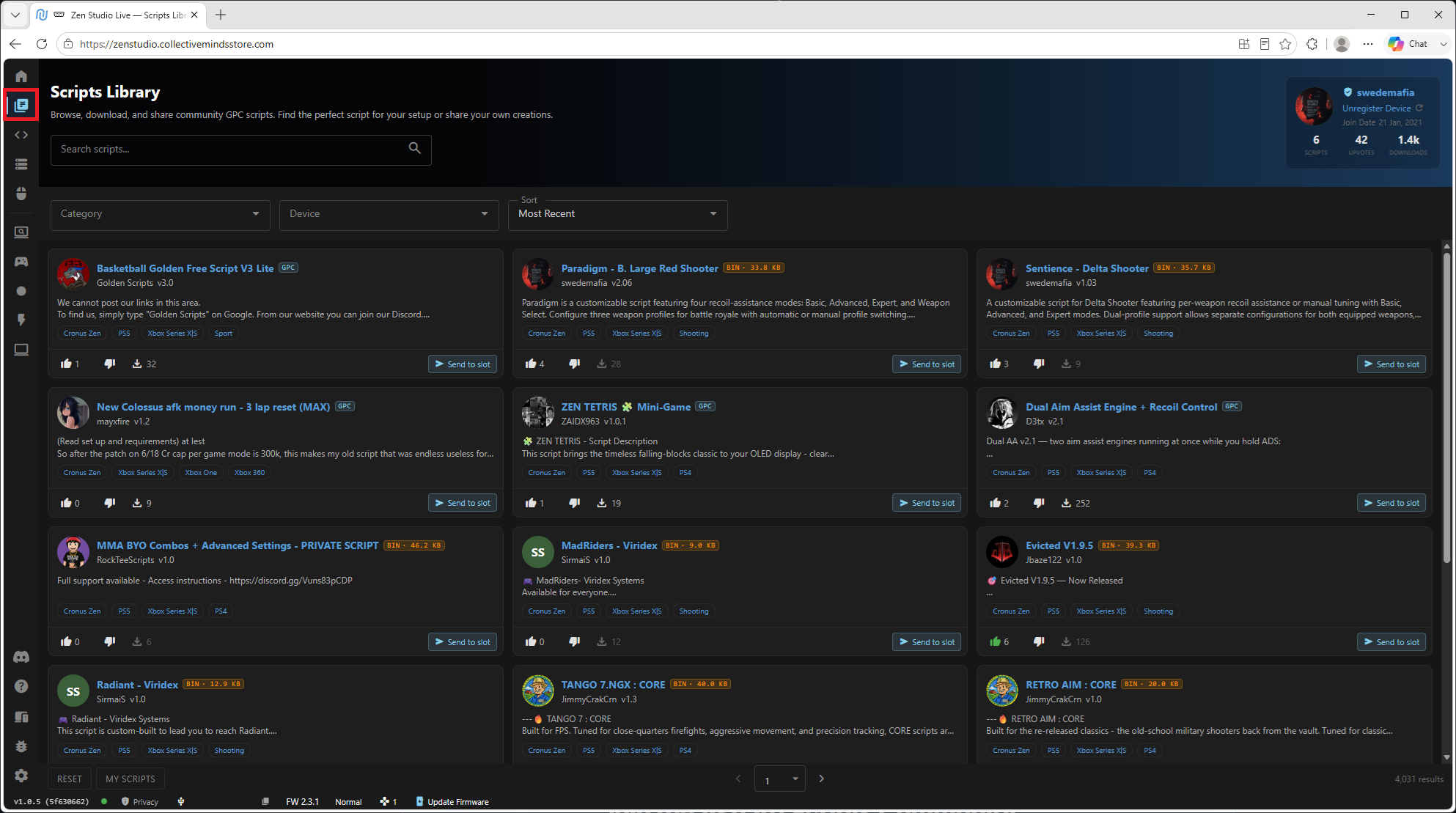
Load your script through Zen Studio Live, follow the step-by-step guide in your account after activation, and ask in Discord if you get stuck — the people who wrote the script answer the questions. No coding, no flashing, no guesswork.
Check your platform, explore the features, then choose your access.
Hi! How can we help?
This conversation has ended.
End this chat?
Leave an email address and we'll send our reply there — even after you go.