Version 1
This guide walks users through setting up Zen Link™ Version 1 for native PlayStation® 5 support. It covers how to confirm the correct hardware version, install the Native PS5 firmware with Zen Link Configurator, connect Zen Link™ to the Cronus Zen and controller, configure required PS5 console settings, perform a factory reset, and troubleshoot common connection or headset audio issues.

Zen Link™ Setup (Version 1)
Follow these steps to install and configure your Zen Link for native PS5 support — no bypass and no Remote Play required.
First: confirm you have the original device
Zen Link™ settings and setup differ between hardware versions. Check the label on the bottom of the device:
- No mention of "V2" anywhere on the label → you have the original (Version 1) — continue with this page.
- Label says "V2" → this page isn't for you; use the Version 2 Setup guide instead
Video Tutorial
1. Install the Native PS5 Firmware
You'll flash the Native PS5 firmware from a Windows PC using the Zen Link Configurator (installed alongside Zen Studio).
- Hold the blue button on your Zen Link™.
- While holding, connect the Zen Link™ to your PC.
- Release the button once the LED flashes red, blue, and green.
- Open the Zen Link Configurator app on your PC.
- Locate the "Native PS5 Firmware" section on the right-hand side.
- Click the orange "NATIVE PS5" button to begin the update.
- Once the update is complete, disconnect the Zen Link™ from your PC.
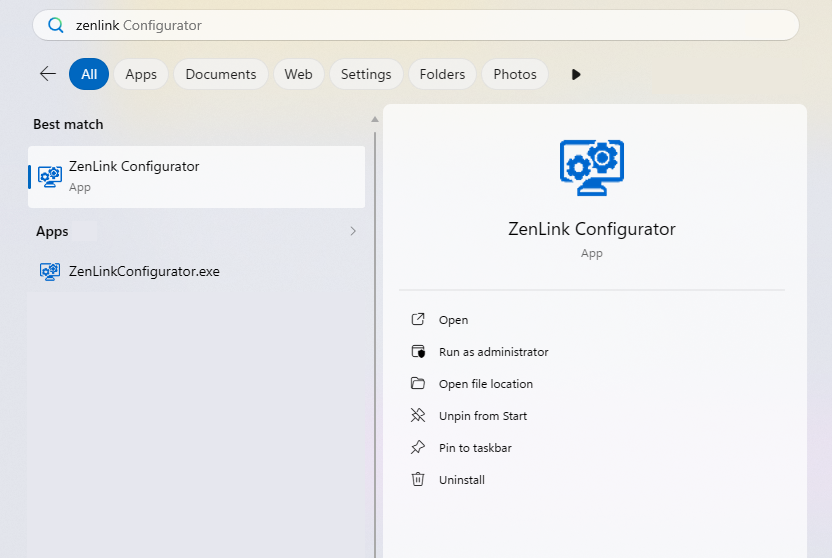
Can't find the Zen Link Configurator?
When installed, the Zen Link Configurator creates a shortcut on your Windows desktop. If it isn't there, click your search bar 🔍 and type "ZenLink Configurator" — it should pop right up.
Do not disconnect mid-upgrade
Never unplug the Zen Link™ while the firmware is flashing — wait until the update reports complete before removing it.
2. Connect Zen Link to Your Cronus Zen & Controller
- On your PS5, go to Settings → Accessories → General → Advanced Settings.
- Select Turn Bluetooth Off — the console will automatically reboot.
- Plug the Zen Link into the left-side A1 port on your Cronus Zen.
- Wait for the LED to turn green, then light blue, to confirm the link.
- Plug a compatible controller into the front-left USB port (A3) on your Cronus Zen.
3. Required PS5 Console Settings
These console-side settings must be applied for native PS5 play to work correctly.
Power Saving
Go to System → Power Saving and set:
- Set Time Until PS5 Enters Rest Mode → While Playing Games → Don't Put in Rest Mode
- Features Available in Rest Mode:
- Supply Power to USB Ports → Always
- Stay Connected to the Internet → Enable
- Enable Turning On PS5 from Network → Enable
- Set Time Until Controllers Turn Off → Don't Turn Off
Controller Settings
Go to Accessories → Controller (General) and set:
- Vibration Intensity → Strong (Standard)
- Trigger Effect Intensity → Strong (Standard)
- Communication Method → Use USB Cable
"Use USB Cable" is not optional
The Communication Method → Use USB Cable setting is essential — without it, the PS5 cannot connect through the Cronus Zen and Zen Link™ at all.
Factory Reset Your Zen Link™
If you need to reset the Zen Link™, follow these steps carefully:
- Prepare a pin, paperclip, or similar small object.
- Insert the pin into the small hole on the bottom of the Zen Link™.
- Press and hold the pin while connecting the Zen Link™ to your PC.
- Keep holding until the LED flashes red → green → blue, then begins flashing red.
- Release the pin once the LED is flashing red (reset complete).
- Open the Zen Link Configurator app.
- Click the orange "NATIVE PS5" button to reinstall the firmware.
Troubleshooting
No connection to the PS5? Double-check Accessories → Controller (General) → Communication Method → Use USB Cable. This is the most common cause — the PS5 can't connect through the Zen and Zen Link™ without it.
No headset audio on PS5? A headset wired to your controller won't work when your DualSense® is paired to the Cronus Zen wirelessly over Bluetooth. It will work if the controller is wired to one of the Zen's front ports (A2 or A3). For wireless play with audio, use a USB or wireless headset connected directly to the PS5.
✅ Quick Recap
- Confirmed Version 1 hardware (no "V2" on the bottom label)
- Native PS5 firmware flashed via Zen Link Configurator (never disconnect mid-update)
- Bluetooth turned off on PS5; Zen Link™ in A1, controller in front A3
- Power Saving configured — Rest Mode off, USB power always, controllers don't turn off
- Controller configured — vibration/trigger Strong, Communication Method → Use USB Cable