Installing Your Script
Download your Asgard script to the Cronus Zen through Zen Studio Live — connecting your device via Cronus Bridge, finding your script in the library, sending it to a slot, and programming it successfully, step by step with screenshots.

Follow this simple guide to download your script to your Cronus Zen through Zen Studio Live.
Before you start
Make sure your purchase is complete and your Discord account is linked — scripts appear in the library once that's done. If you can't find your script at the search step below, that's the first thing to check.
Step 1 — Connect Your Zen
Connect your Cronus Zen to your PC using the right-side PROG port.
Step 2 — Open Zen Studio Live
In your browser, navigate to Zen Studio Live:
👉 https://zenstudio.collectivemindsstore.com
Step 3 — Connect the Device
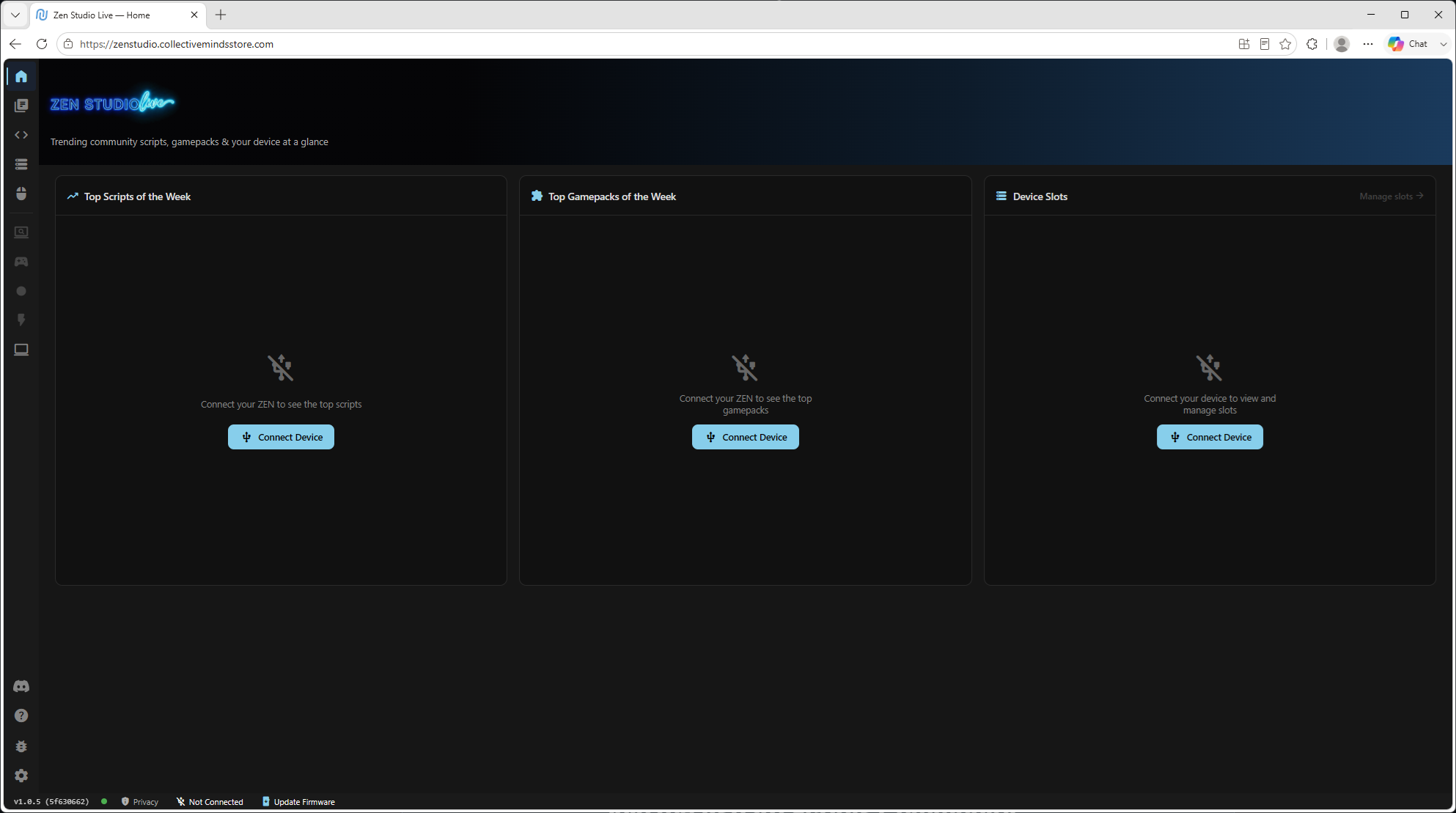
If the page shows "Connect Device" (like the image below), click one of the blue "Connect Device" buttons.
Step 4 — Select "Cronus Bridge"
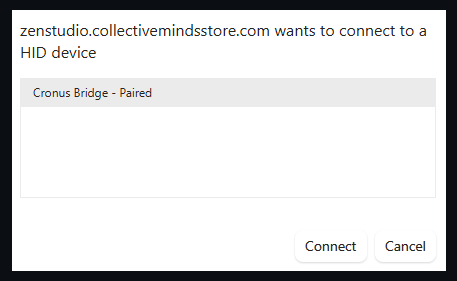
When the popup opens asking to connect to an HID device, select "Cronus Bridge" and hit Connect.
Step 5 — Open the Script Library
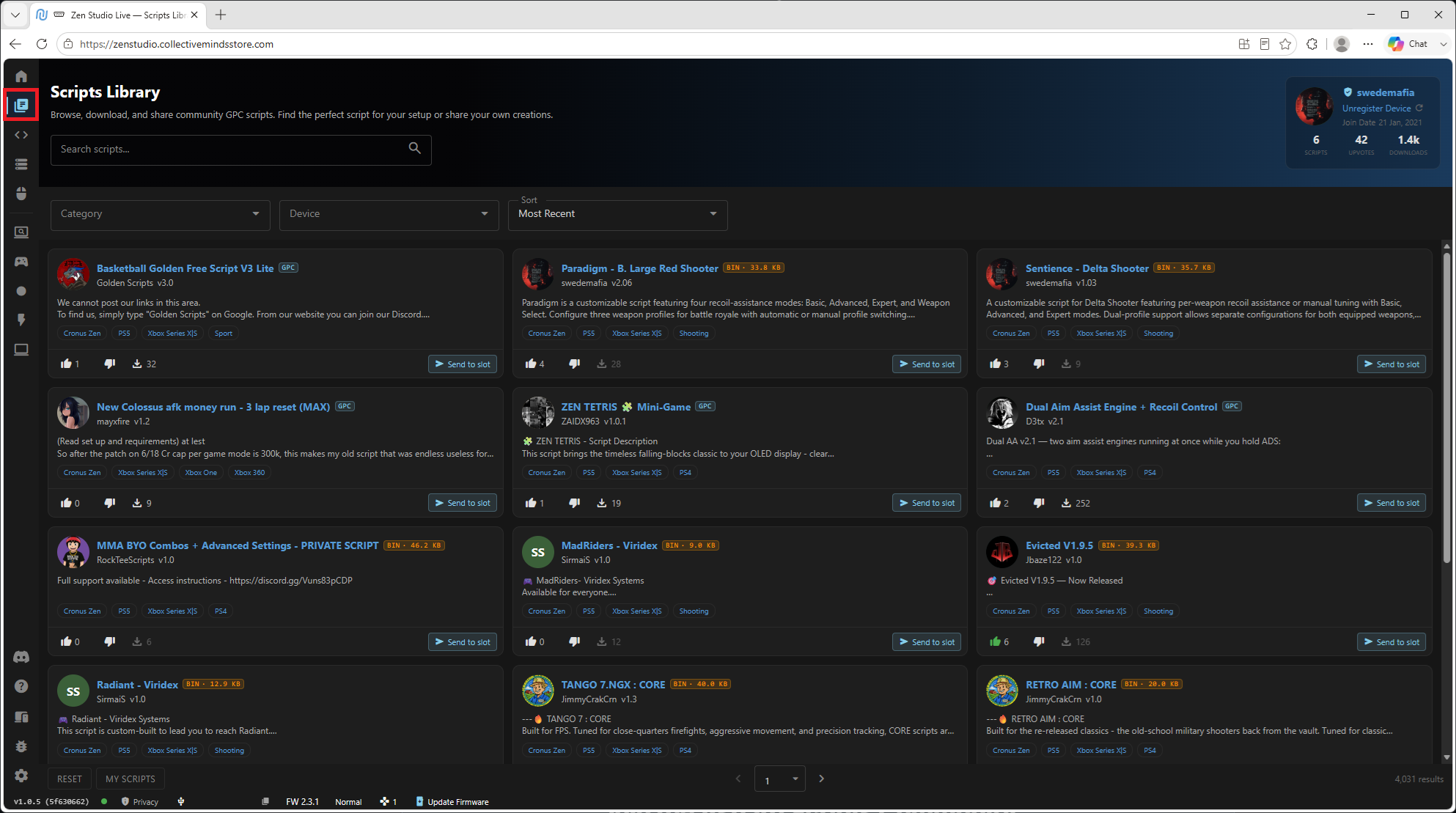
Click the second icon down (highlighted in red below) to navigate to the script library.
Step 6 — Search and Send to Slot
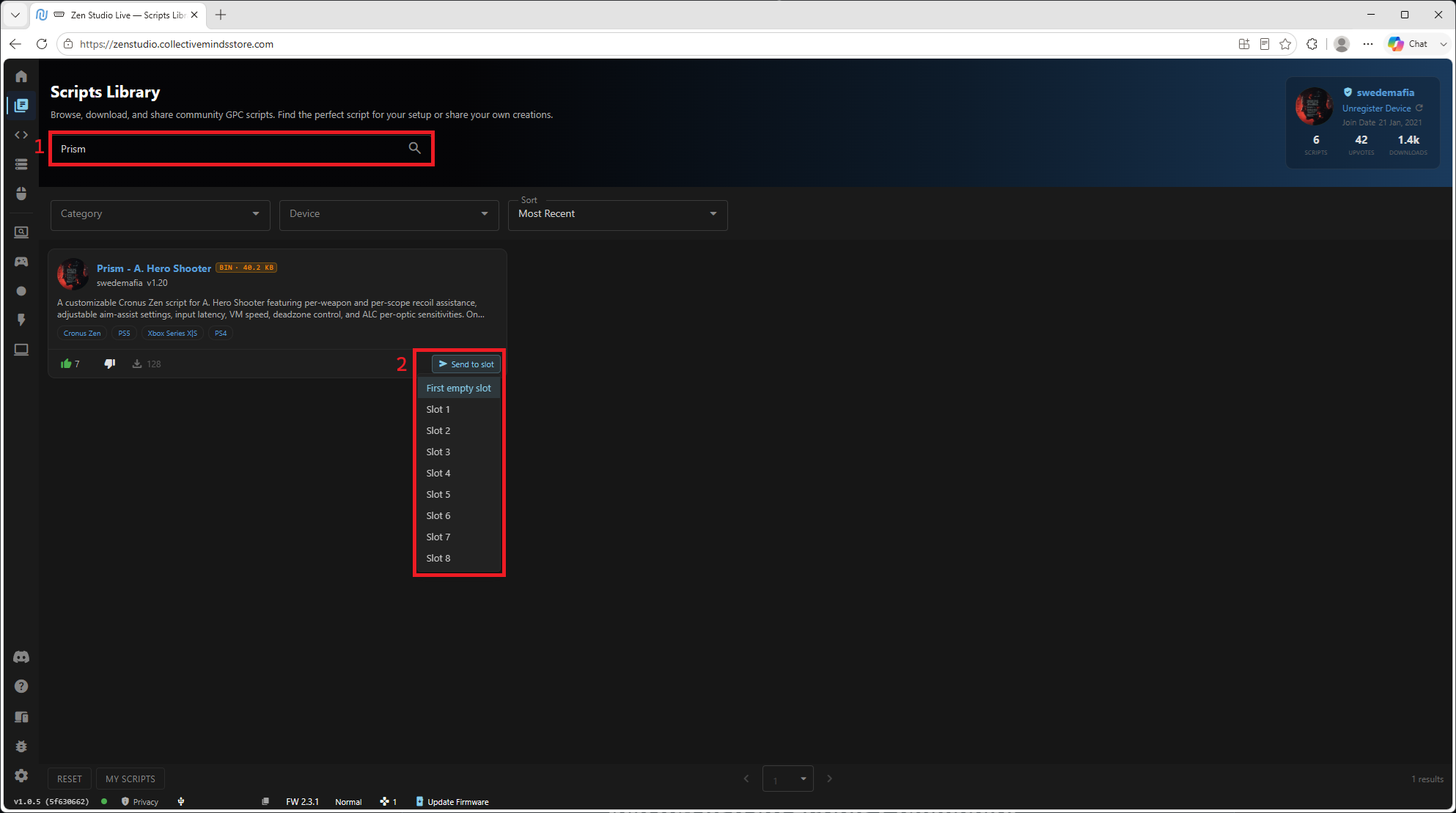
- Type in the name of your script (e.g., "Prism") and press Enter to search.
- When the script appears, click "Send to slot", then "First empty slot".
No empty slots?
Depending on how many scripts are on your device, you may need to overwrite an old one — especially if you're upgrading a script to its newest version.
Overwriting the outdated copy is exactly what you want in that case.
Step 7 — Confirm and View Slots
If a green popup appears, the script was added successfully. Click the "View Slots" button to open the programmer page.
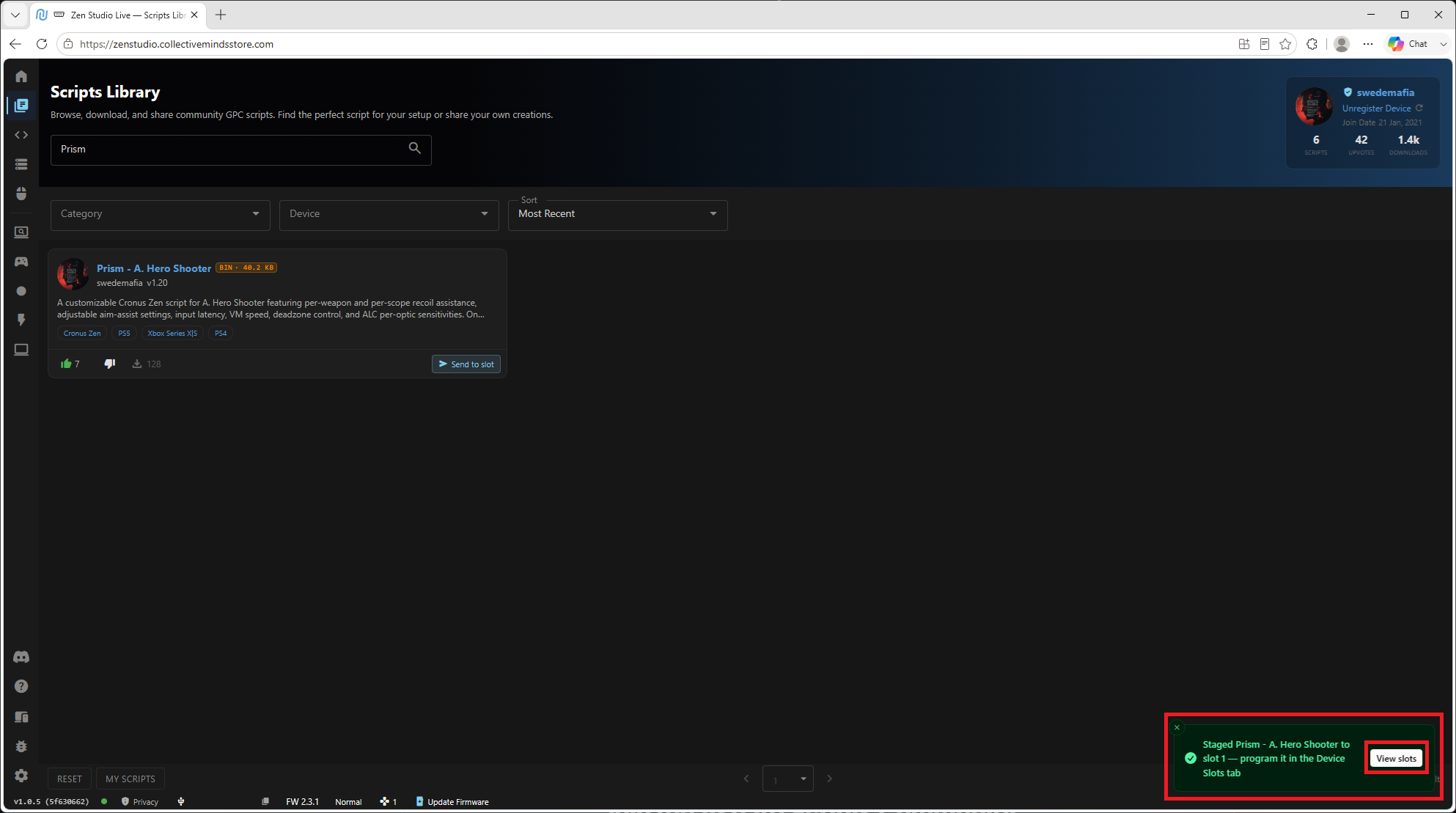
Step 8 — Program Your Device
Click the yellow "Program" button to program your device.
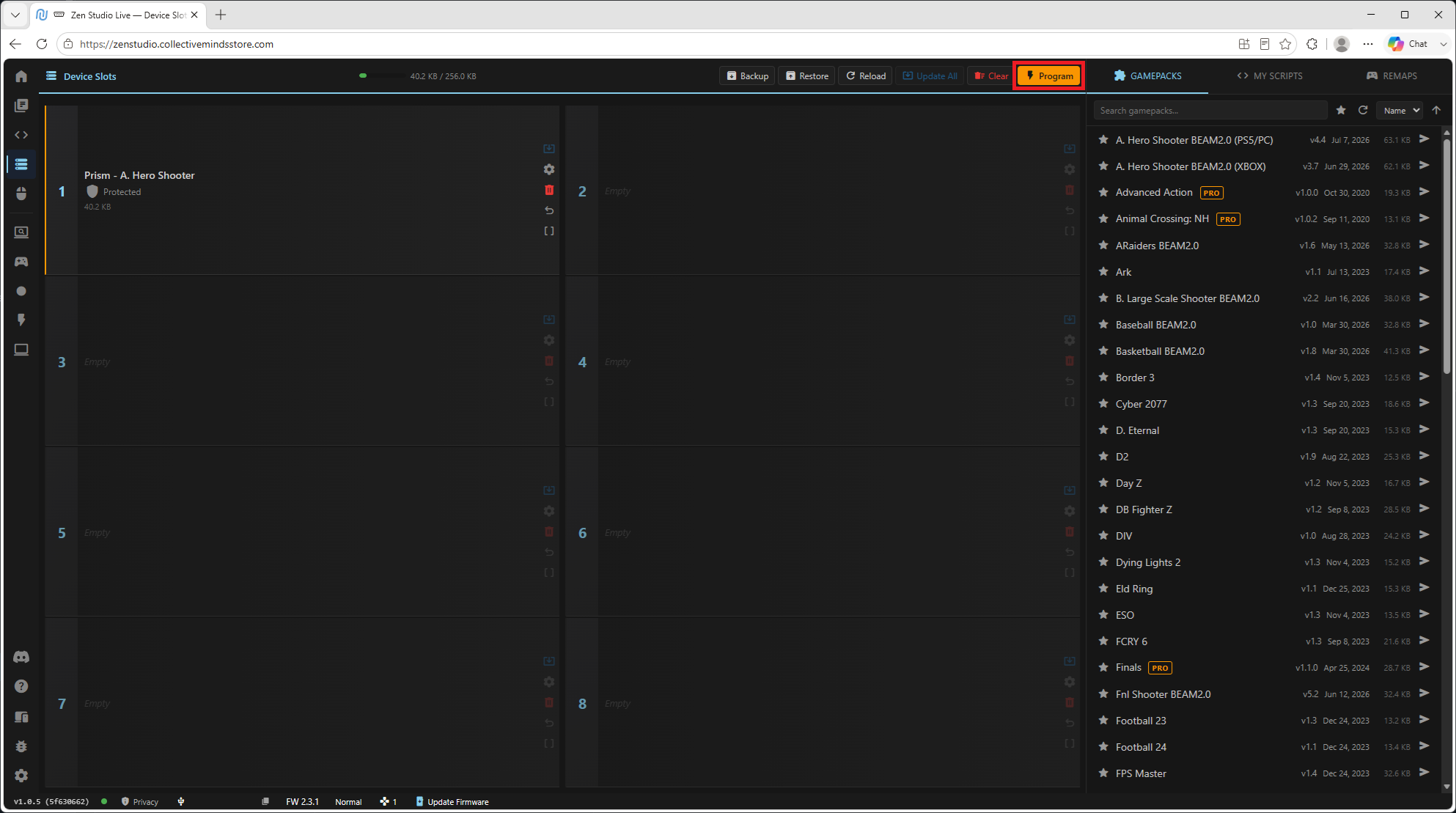
Step 9 — Wait for Completion
Wait for programming to complete, and confirm it finishes successfully. If any errors appear, follow the on-screen prompt.
Script installed!
You've successfully programmed the script to your Cronus Zen from the script library. The next step is to unlock the script — head to our Key Guide to continue.
After Unlocking — Set Up Your Script
- Once you've entered your key, head over to the guide for your script to configure it and get playing:
- Empathy (PUB) → Empathy Guide
- Paradigm (Battlefield 6) → Paradigm Guide
- Prism (Apex Legends) → Prism Guide
- Sentience (Delta Force) → Sentience Guide
- Valkyrie (ARC Raiders) → Valkyrie Guide
Each guide starts with a Getting Started page covering the required in-game settings, then walks you through every menu and feature in the recommended order.
✅ Quick Recap
- Zen connected via the right-side PROG port
- Connected in Zen Studio Live via "Cronus Bridge"
- Script found by name in the library (e.g., "Prism")
- Sent to a slot (first empty, or overwrote the old version when upgrading)
- Green popup confirmed, then Programmed successfully
- Next: unlock the script with the Key Guide
- Then: follow your script's guide (Empathy / Paradigm / Prism / Sentience / Valkyrie) to set it up